
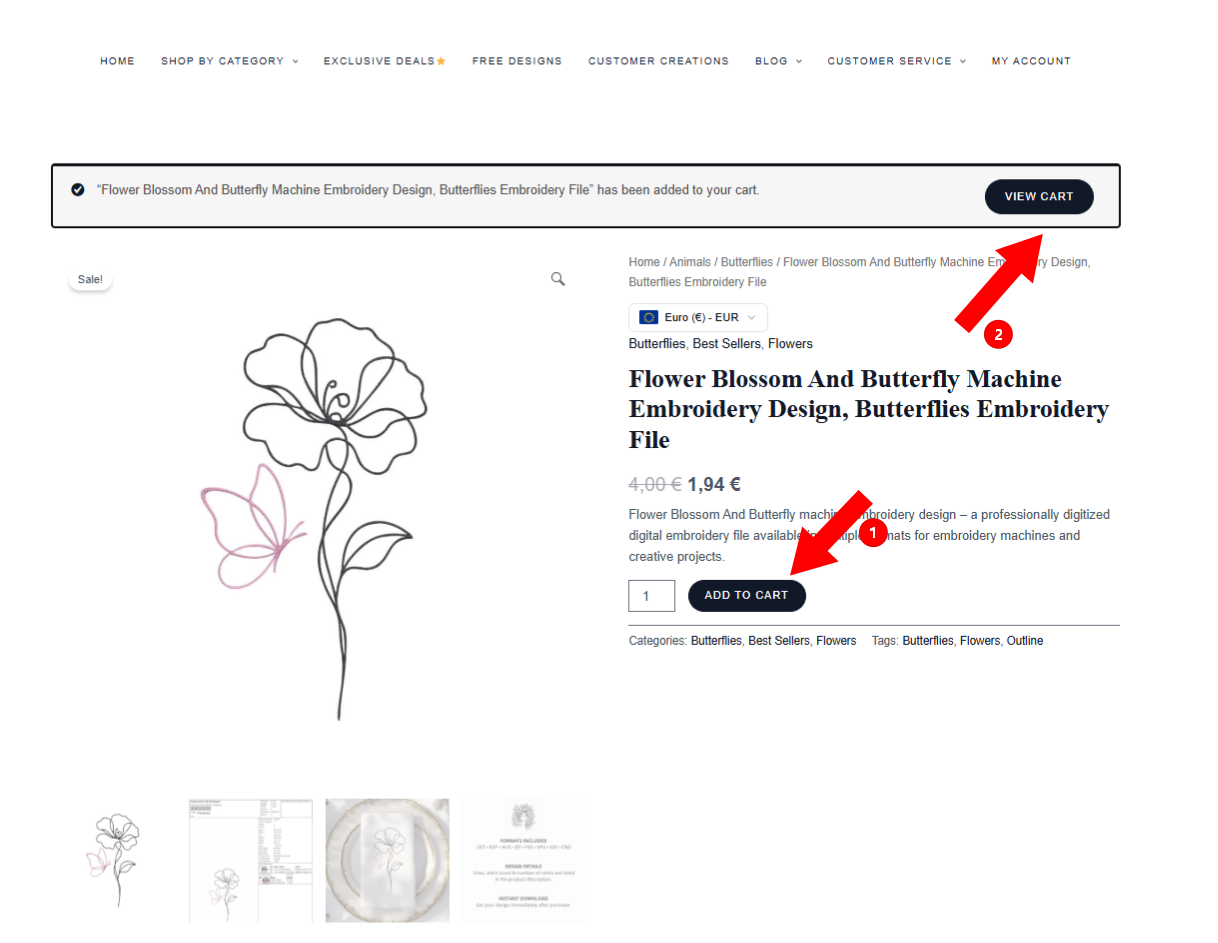
How to Purchase
Choose your design →
Add to cart →
Proceed to checkout →
Complete your payment.
How to Download
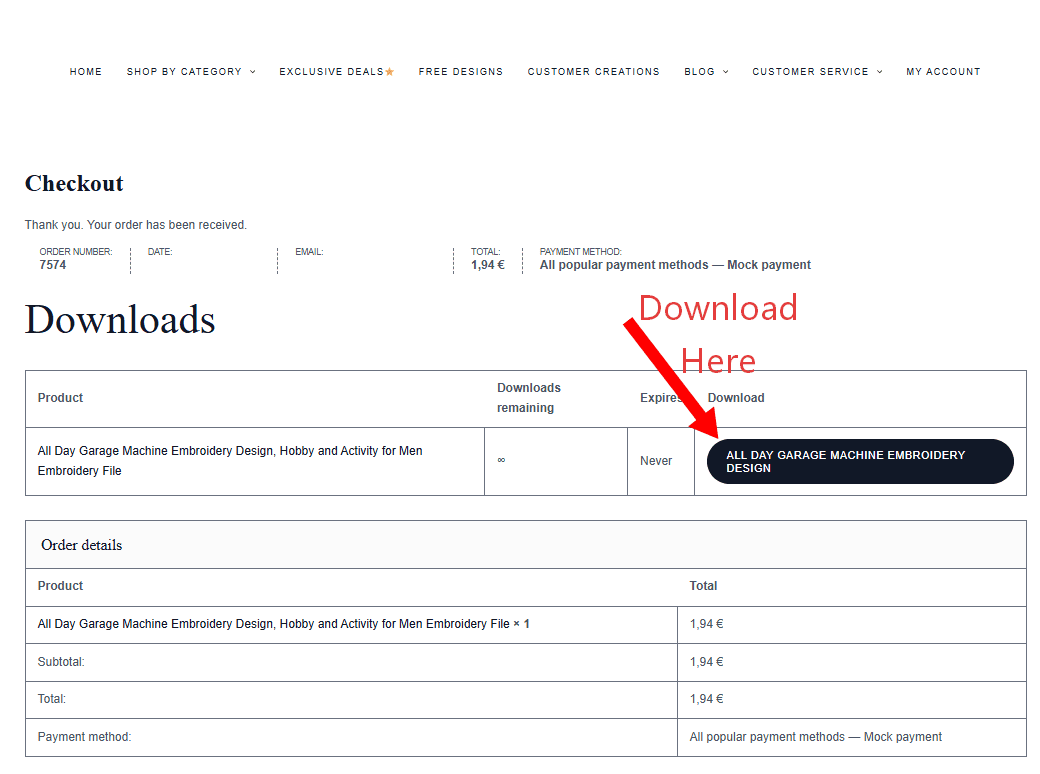
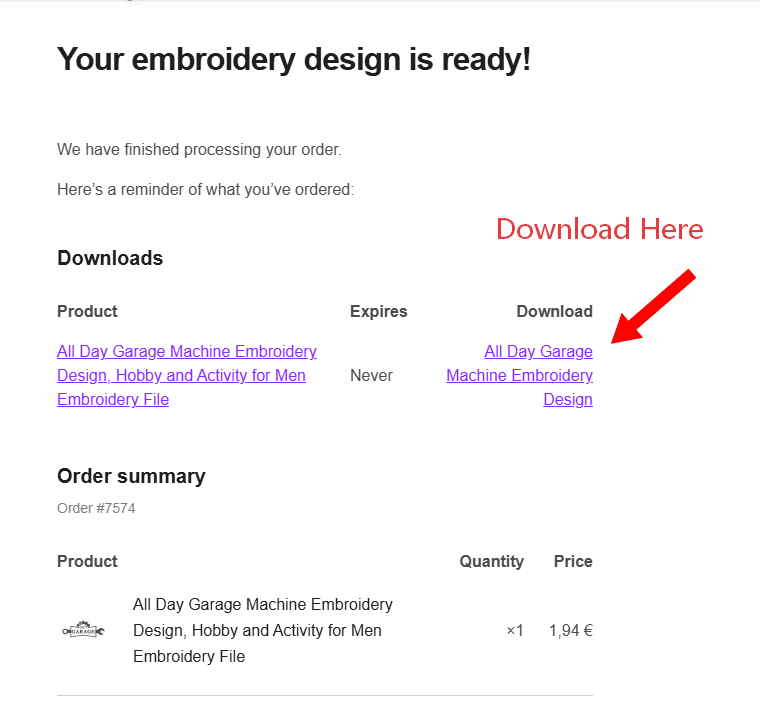
Your embroidery files are available immediately after your order is completed →
Download your ZIP file from the order confirmation page or from the link sent to your email →
If you have an account, access your purchased files anytime from your account.
How to Open Your ZIP File
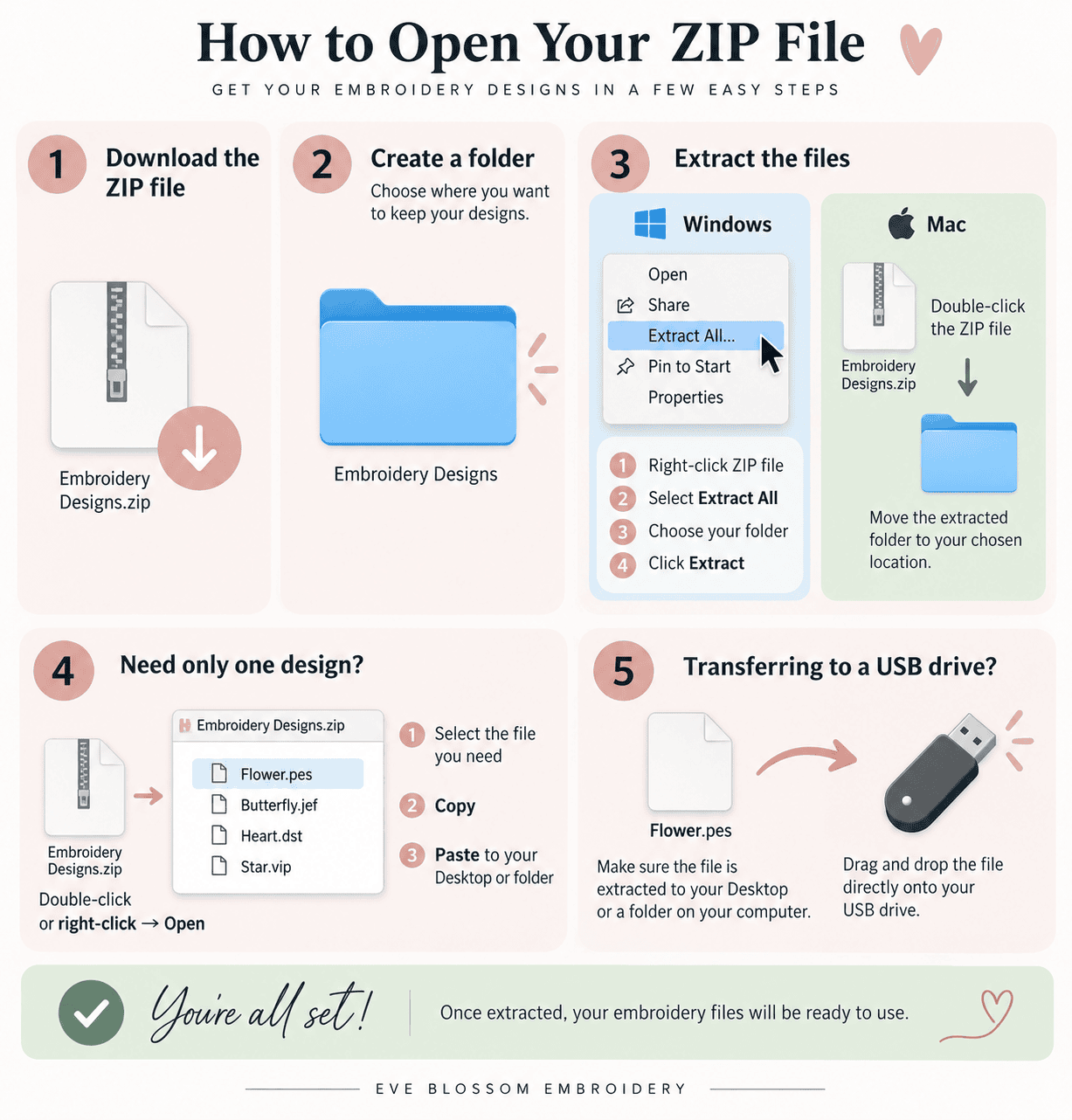
Download the ZIP file to your computer or device.
Create a folder where you would like to keep your embroidery designs.
Windows: Right-click the ZIP file → Extract All → choose the folder you created → Extract.
Mac: Double-click the ZIP file to extract it, then move the extracted folder to your chosen location.
Need only one design? You can open the ZIP file by double-clicking it or by right-clicking → Open. Select the embroidery file you need, then use Copy → Paste to copy it to your Desktop or the folder where you want to keep the design.
Transferring a design to a USB drive? First, make sure the embroidery file has been copied or extracted to your Desktop or a folder on your computer. Then, drag and drop the file from your Desktop or folder directly onto your USB drive. We recommend this method rather than copying the file directly from inside the ZIP folder.
Once extracted, your embroidery files will be ready to use.
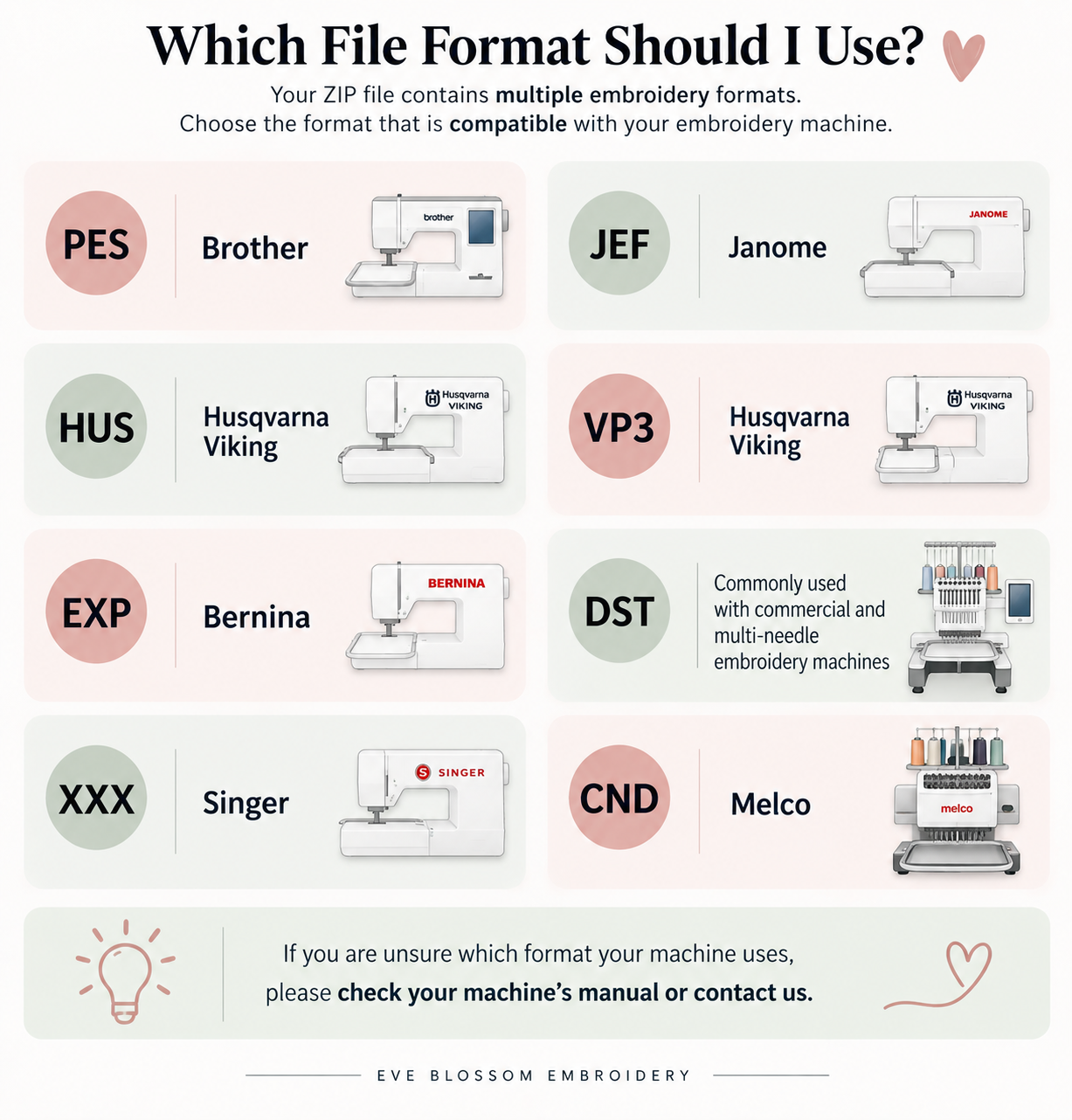
Which File Format Should I Use?
Your ZIP file contains multiple embroidery formats. Choose the format that is compatible with your embroidery machine.
PES → Brother
JEF → Janome
HUS → Husqvarna Viking
VP3 → Husqvarna Viking
EXP → Bernina
DST → Commonly used with commercial and multi-needle embroidery machines
XXX → Singer
CND → Melco
If you are unsure which format your machine uses, please check your machine’s manual or contact us.
Ready to Embroider!
Once your design is downloaded, extracted, and transferred to your machine, you are ready to start embroidering. 🧵